Timesheet Setup
Introduction
Our site allows you to edit/add timesheet codes to suit your needs and preferences; we will delve deeper into the specific customization options later. This feature makes every timesheet dynamic and custom to each customer, helping you run more effectively and efficiently.
Where to set up
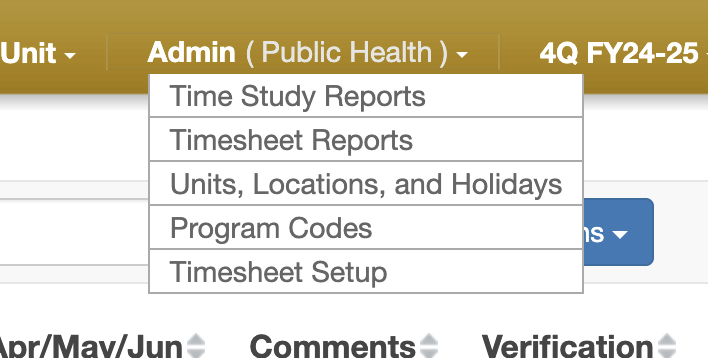 To set up timesheet codes, an admin will navigate to the Timesheet Setup popup via their admin menu; from here,
you can select the code you wish to edit or add a new code.
To set up timesheet codes, an admin will navigate to the Timesheet Setup popup via their admin menu; from here,
you can select the code you wish to edit or add a new code.
Editing a timesheet code
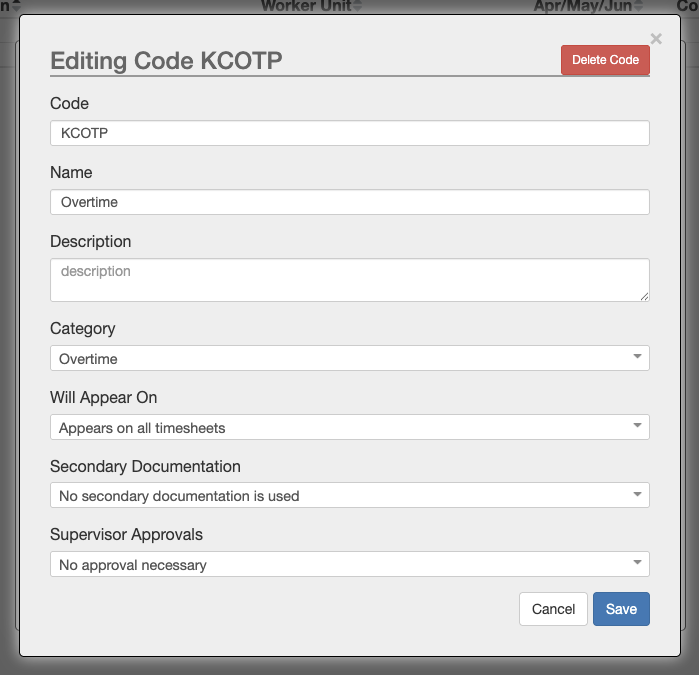 Every timesheet code currently has seven base options:
 Code, Name, Description, category, Will Appear On,
Secondary Documentation, and Supervisor Approvals. Whether some of the more special options are visible depends on
whether your wants and needs require them. We also offer support for custom options tailored to your specific requirements.
Now, let's dive into each option and explain what they do.
Code, Name, and Description
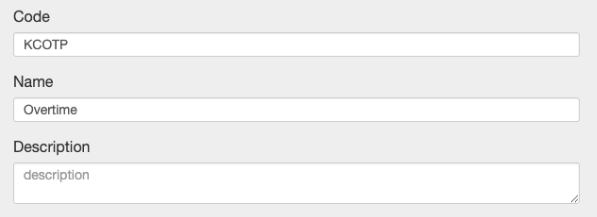
 All of these options are fully customizable by you and are used to describe your code, making it easier to read/understand.
A code is a five-letter abbreviation of the name and your county; in
All of these options are fully customizable by you and are used to describe your code, making it easier to read/understand.
A code is a five-letter abbreviation of the name and your county; in KCOPT, the KC stands for Kings County, and the OPT stands for
Overtime Pay. The name and description are entirely up to you; you can choose whatever makes the most sense.
Category
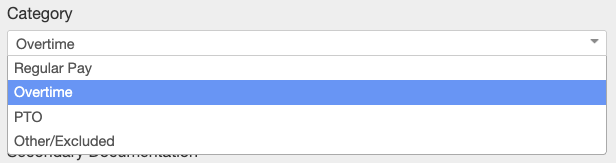
 You can use different categories if some pay more than others or need to be tracked differently for any reason. The base
options for this feature include
You can use different categories if some pay more than others or need to be tracked differently for any reason. The base
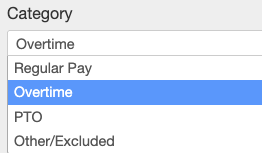
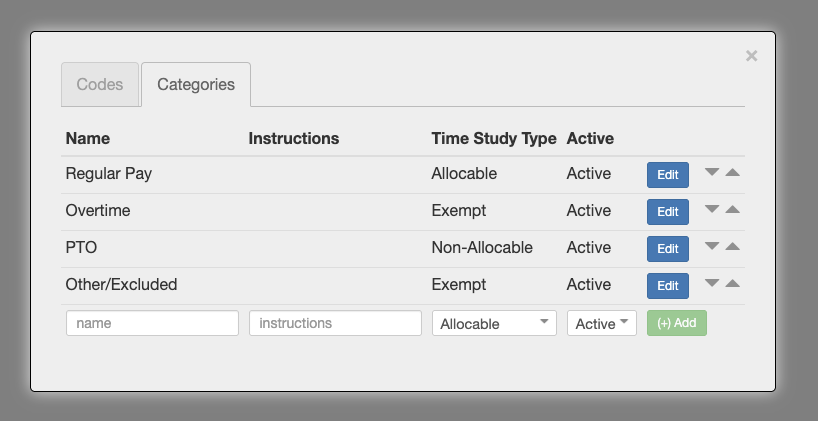
options for this feature include Regular Pay, Overtime, PTO, and Other/Excluded. Regular Pay is for a worker's hours
worked at their normal Rate, Overtime is for any overtime pay, PTO is for any paid time off, and Other/Excluded can be
used for a wide range of specific scenarios. You can also add your own category in the categories tab.
Will Appear on
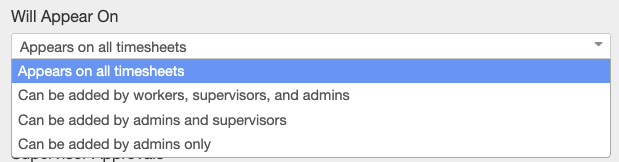
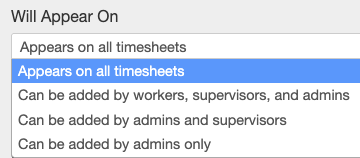 This option controls which codes you can add to different types of workers' timesheets; some codes may only apply to admins, some
to supervisors, and some to workers. This way, all the codes on a worker's screen apply to them.
This option controls which codes you can add to different types of workers' timesheets; some codes may only apply to admins, some
to supervisors, and some to workers. This way, all the codes on a worker's screen apply to them.
Secondary Documentation

 This feature allows you to configure optional or required secondary documentation on specific codes. For example,
it might be a good idea to require secondary documentation on an overtime code; this way, the worker can explain
why and when they worked those hours.
This feature allows you to configure optional or required secondary documentation on specific codes. For example,
it might be a good idea to require secondary documentation on an overtime code; this way, the worker can explain
why and when they worked those hours.
Supervisor Approvals
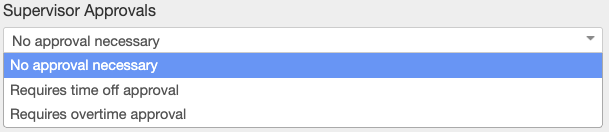
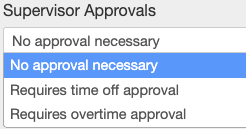 The supervisor approval option controls which codes need supervisor approval; there are two types of supervisor approval:
 Overtime
and time off. Both options work similarly; when someone logs hours into codes that require approval, it creates a
time request that a supervisor must review. An example of this is setting the overtime code to require overtime approval,
allowing a supervisor to review all overtime claims.
Adding a code
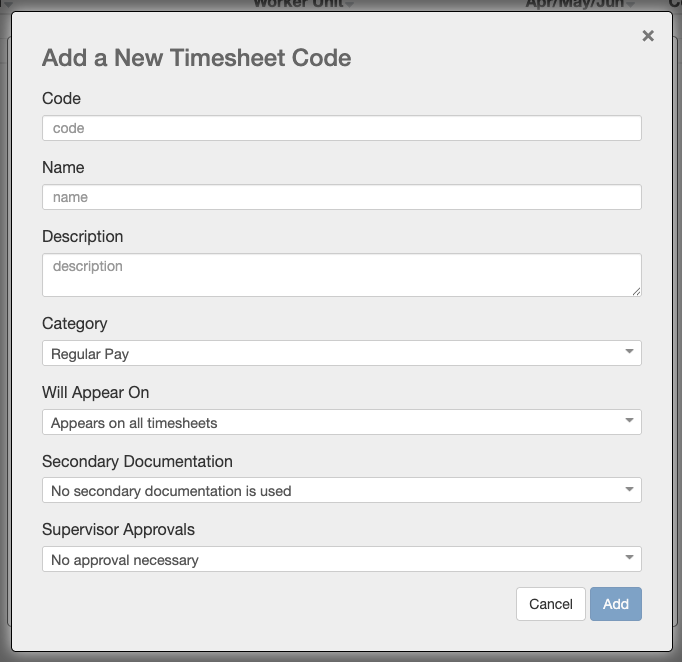 Adding a code works the same way, except you have to set it up from scratch; it comes with the same options as above.
Adding a code might be helpful if you have tasks that are specific to your workplace.
Adding a code works the same way, except you have to set it up from scratch; it comes with the same options as above.
Adding a code might be helpful if you have tasks that are specific to your workplace.
Importance
The ability to customize timesheets for each customer offers a plethora of benefits; a customized timesheet is a more efficient timesheet. Making the timesheets custom to each person removes everything that isn't relevant to their work, improving productivity and their time study experience.